DocsIntegrations
How to track lead source in Contact Form 7
A Contact Form 7 enquiry tells you what the visitor wrote. It does not tell you whether they came from a Google ad, a newsletter or a search result.
TrackLeadSource fills five hidden fields in your form with the source, medium and campaign of the visit, the sources the visitor came from in order, and the pages they viewed. Each enquiry arrives with that context, so you can see it with the enquiry and in anything the form is connected to.
With the source saved on every enquiry, you can see which channels bring leads and, once sales results are added in your CRM, which bring customers. Setup takes one snippet and five hidden fields in your form.
Install the snippet
- Sign in to your TrackLeadSource dashboard and open Websites, then your website.
- Go to the Installation tab and copy the snippet.
- Paste it before the closing
</head>tag on every page, including the page with your form.
<script async src="https://app.trackleadsource.com/tls.js" data-site-id="tls_your_site_id"></script>
Add the hidden fields
- In WordPress, go to Contact > Contact Forms and open your form.
- Open the Form tab.
- Add the five lines below above the submit button.
- Click Save.
[hidden tls_source]
[hidden tls_medium]
[hidden tls_campaign]
[hidden tls_channel_path]
[hidden tls_page_path]
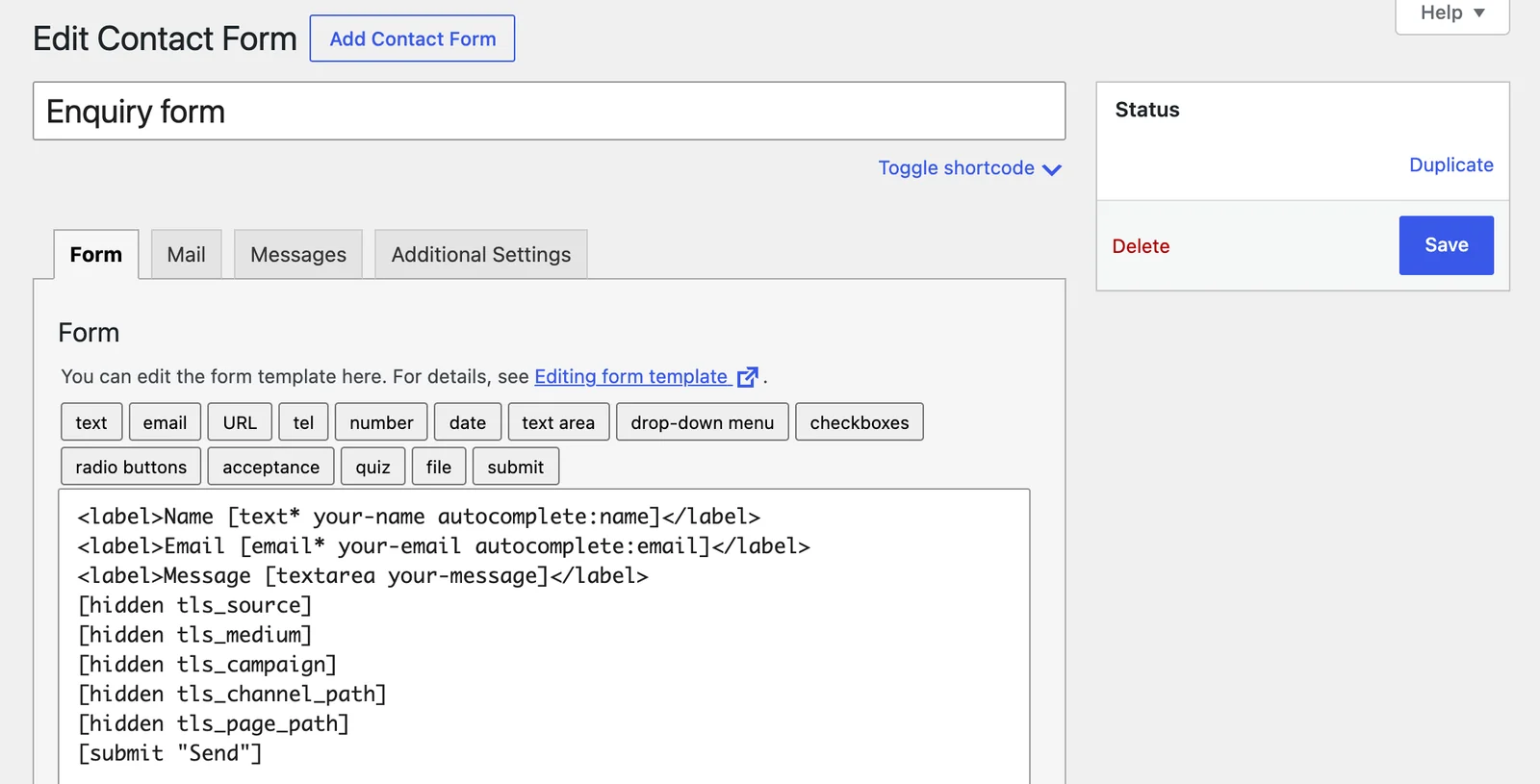 The Form tab with the five hidden fields added
The names must match exactly. The snippet fills the fields when the page loads, so you do not set a value.
| Field | What it holds |
|---|---|
tls_source | Source of the last recorded visit |
tls_medium | Medium of that visit |
tls_campaign | Campaign of that visit |
tls_channel_path | Sources the visitor came from, in order |
tls_page_path | Pages the visitor viewed, in order |
Add the values to your email
Contact Form 7 only puts the fields in an email if you ask.
- Open the Mail tab of the same form.
- Add the five lines below to the Message body.
- Click Save.
Source: [tls_source]
Medium: [tls_medium]
Campaign: [tls_campaign]
Source journey: [tls_channel_path]
Pages visited: [tls_page_path]
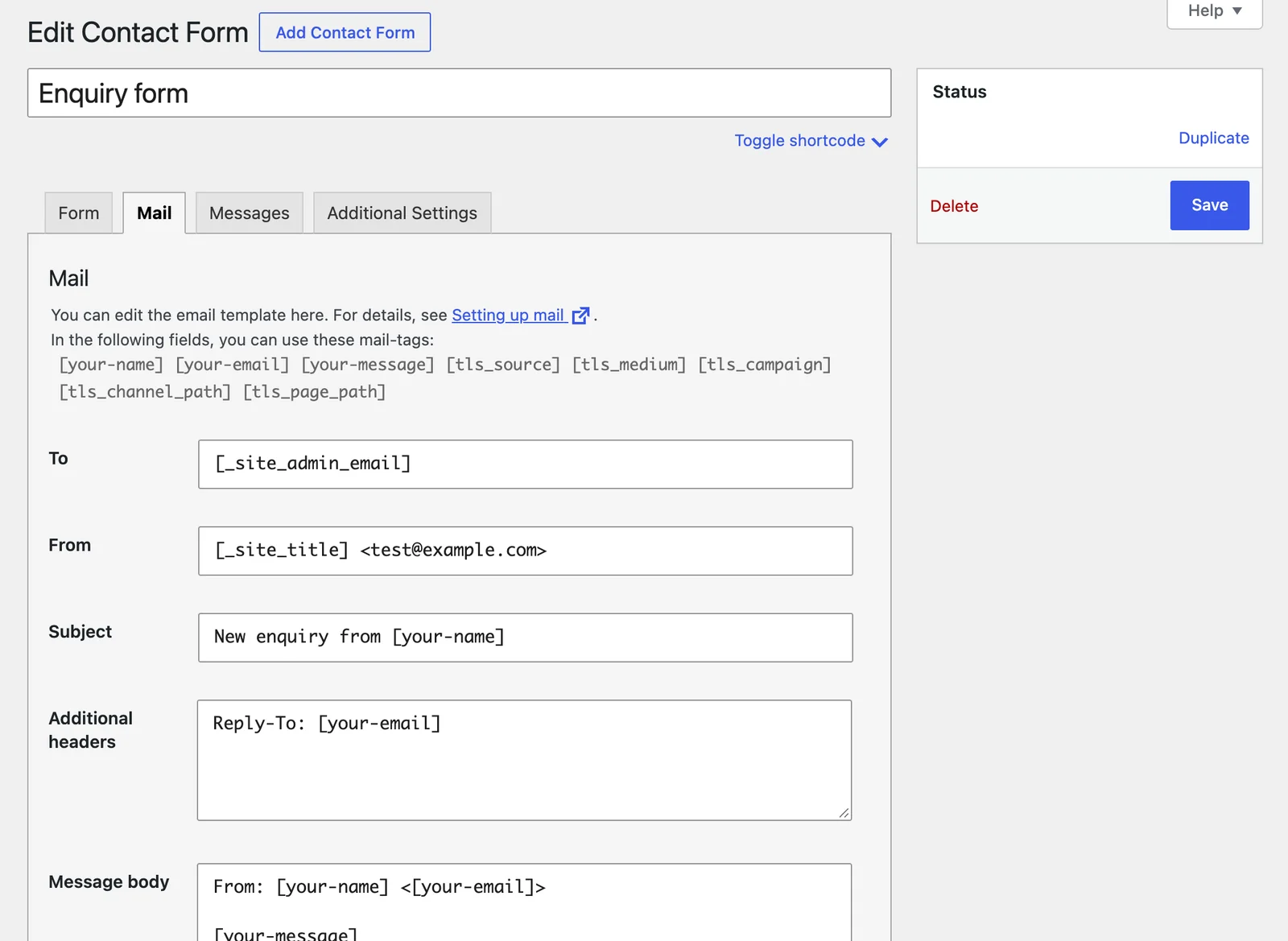 The Mail tab with the mail tags in the message body
If enquiries go to a CRM or spreadsheet through another plugin, map the five fields there too.
Send a test enquiry
- Add the bold part to the end of your website address and open it:
example.com/?utm_source=test&utm_medium=cpc&utm_campaign=autumn - Click through to the page with your form and submit it.
- Open the email and check that the source is
test, the medium iscpcand the campaign isautumn.
If every field says TrackLeadSource inactive, the site ID in the snippet is wrong or the domain of the page does not match the website in your dashboard.
Support
If you have any questions, don’t hesitate to reach out to hello@trackleadsource.com.